Google Ads audit checklist: find wasted spend
A step-by-step Google Ads audit for Australian small businesses: tracking, search terms, negatives, locations, schedules and networks that waste money.
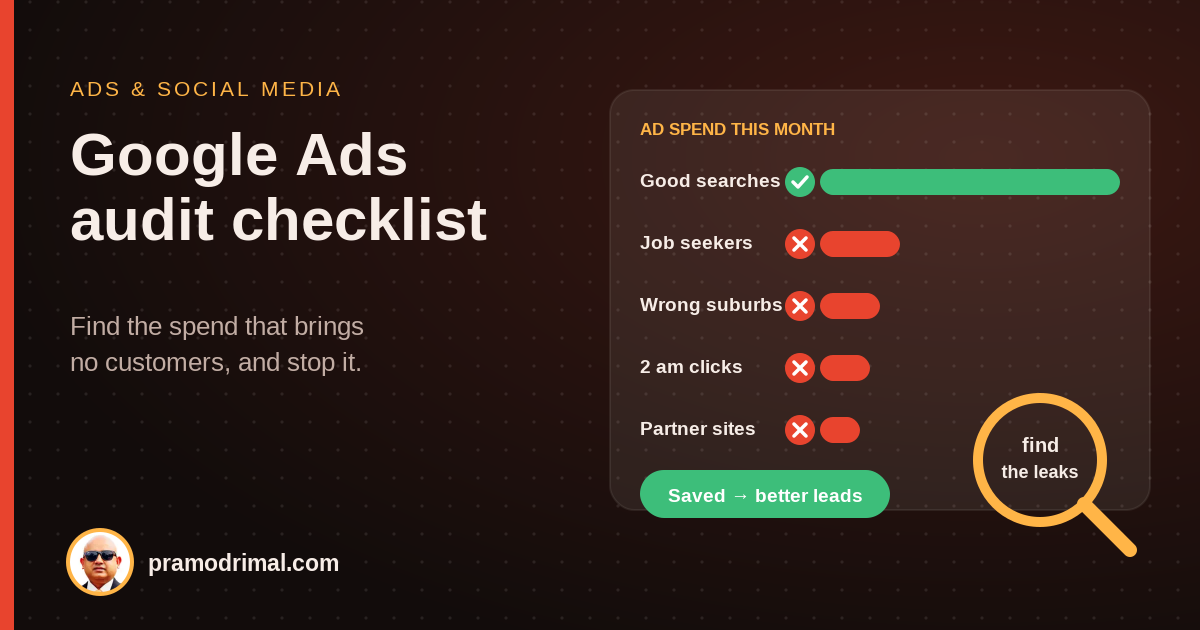
Quick answer A Google Ads audit is a careful check of your account to find money that is being spent without bringing customers. Most waste hides in a few places: searches that have nothing to do with you, people outside your service area, clicks from partner sites, ads running when nobody can answer the phone, and tracking that counts the wrong things. Google's own tools show you where to look, starting with the search terms report [1]. This checklist walks through every step, in the order that saves the most money first.
Key takeaways
- Check tracking first. If conversions are counted wrongly, every other decision is built on bad numbers [7].
- The search terms report shows what people actually typed. Turn bad searches into negative keywords [1] [9].
- "Presence or interest" is Google's default location setting. Decide if you really want people outside your area to see your ads [2].
- Ads run "all day" unless you set an ad schedule [3].
- Search partners are switched on by default, and Google warns their clicks "may not always reflect highly targeted traffic" [6].
- Read every recommendation before applying it, and check what auto-apply is allowed to change [5].
What is a Google Ads audit, and when do you need one?
An audit is like a health check for your ad account. You look at where every dollar goes, what it brings back, and which settings quietly cost you money. You don't need special software. You need Google Ads, an hour or two, and this list.
Do an audit when:
- you have never checked the account since it was set up,
- cost per lead has crept up for no clear reason,
- someone else built the account and you don't know what it does,
- you are about to raise the budget (fix the leaks first),
- leads are coming in but they are the wrong kind of customer.
If you are brand new to Google Ads, read my Google Ads beginner's guide first. It explains the auction, match types and budgets this checklist refers to.
Step 1: Is your conversion tracking telling the truth?
Start here, always. Smart Bidding and your own decisions both rely on conversion data [7]. If the numbers are wrong, the account will learn the wrong lessons.
Check these things:
- What counts as a conversion? Open the conversions list. Every action marked as a primary action feeds the "Conversions" column and bidding. Anything set to secondary is "observe only" [7].
- Are the right actions primary? Real enquiries (form sent, call from ad, booking) should be primary. Soft actions such as "viewed contact page" or "scrolled 50%" should be secondary, or they teach Google to chase the wrong people.
- Is anything counted twice? A form tracked by both the Google tag and an imported Analytics goal can double your numbers. Keep one source as primary.
- Do the tags actually work? New conversion actions show "Unverified" or "Inactive" until the first conversion, which is normal [8]. An old action that is still inactive means something is broken. Submit a test form and make a test call.
| Conversion action | Primary or secondary? | Why |
|---|---|---|
| Enquiry form sent | Primary | A real lead |
| Call from ad | Primary | A real conversation |
| Online booking | Primary | A real customer |
| Clicked phone number on website | Usually secondary | Many clicks never call |
| Page views or scrolls | Secondary | Interest, not a lead |
Tracking also lives outside Google Ads. My guide to Search Console, GA4 and SEO tools shows how to check that GA4 and Tag Manager record the same enquiries.
Step 2: What are people really searching? (search terms report)
Your keywords are not the same as the searches that trigger your ads. The search terms report shows the real searches that "a significant number of people have used" and that led to impressions and clicks [1].
How to read it:
- Open the search terms report for the last 30 or 90 days.
- Add the Keyword column. It is hidden by default; turn it on through the columns menu under "Attributes" [1]. Now you can see which of your keywords triggered each search.
- Sort by cost. Read the top 50 searches. For each one ask: would I be happy to pay for this click?
- Mark three groups: great (add as a keyword if missing), wrong (add as a negative), and unsure (watch for another month).
Google's advice for irrelevant searches is simple: add them as negative keywords. Its example is an ad showing for "wine glasses", fixed by adding "wine" as a negative [1].
Common wasteful searches for local businesses
| Search type | Example | What to do |
|---|---|---|
| Job seekers | "plumber jobs adelaide", "electrician apprenticeship" | Add jobs, apprenticeship, salary, course |
| DIY | "how to unblock a drain yourself" | Add how to, DIY, yourself |
| Wrong service | "plumbing supplies", "drain cleaner bunnings" | Add supplies, product names |
| Wrong place | "plumber darwin" for an Adelaide business | Add the place, or fix locations (step 4) |
| Free or cheap seekers | "free quote template" | Add template, free (only if free work isn't your offer) |
Step 3: Are your negative keywords doing their job?
Negative keywords stop your ads showing for searches you don't want. Check three things.
Are there enough? An account with almost no negatives usually leaks money. Build a shared negative list and apply it to every campaign.
Do they cover plurals and spelling? Negative keywords don't match close variants, so you need to add plurals and synonyms yourself [9]. If you added "job", also add "jobs".
Are any blocking good searches? Too many negatives can stop you reaching people you want [9]. Google's recommendations page can even flag "conflicting negative keywords" that block your own keywords [5]. Fix those first.
Step 4: Are your ads showing in the right places?
Location settings hide two common leaks.
Leak 1: "Presence or interest". Google's default and recommended location option shows ads to people who are likely to be in your area and to people who have shown interest in it [2]. For a tourist business that is useful. For a plumber who only works in Adelaide, someone in Perth reading about Adelaide is not a customer. Google notes that most campaigns see fewer impressions when they switch away from the default [2], which is exactly the point if those impressions were wasted. Choose presence if you only serve people physically in your area.
Leak 2: no exclusions. You can exclude locations so ads don't show to people who most likely can't use your service [10]. Exclusion always wins over inclusion: if you target a city but exclude its state, the city is excluded too [10]. You don't need to exclude places you never targeted [10].
Then open the locations report and look at cost by area. If a far-away suburb costs a lot and never converts, lower bids there or exclude it.
Step 5: Are ads running when nobody can answer?
By default, campaigns show ads all day [3]. If your ads mostly ask people to call, a click at 2 am may be wasted. An ad schedule lets you choose days and hours, and raise or lower bids at certain times [3].
How to decide:
- Look at conversions by day and hour (the "When" reports).
- If night clicks never turn into leads, reduce bids or pause those hours.
- If you have a form, a booking calendar or a chatbot that works overnight, night clicks may be fine. See does a small business need an AI chatbot? for how after-hours chat captures leads.
One detail beginners miss: even with an ad schedule, campaigns pace toward a monthly spend of 30.4 times your average daily budget, no matter how many days the campaign runs [3]. Fewer hours does not automatically mean less spend, so set the budget on purpose.
Step 6: Are search partners and other networks worth it?
Search campaigns include Google search partners by default [6]. These are other websites that show Google search ads. Google says clicks from these sites "may not always reflect highly targeted traffic" and that it doesn't tell you which specific partner sites showed your ad [6].
Check it like this:
- In your campaign, segment by Network (with search partners).
- Compare cost per conversion for Google search and for search partners.
- If partners cost more per lead, or bring no leads, untick "Include Google search partners" in campaign settings [6].
Also check that a Search campaign isn't quietly showing on the Display Network. "Display expansion" is one of the recommendations that can be auto-applied [5], and picture ads on random websites behave very differently from search ads.
Step 7: Do your ads and landing pages match the search?
Wasted spend isn't only bad clicks. It is also good clicks that don't convert.
- Quality Score check. Look at the three parts: expected click-through rate, ad relevance and landing page experience. Each is rated above average, average or below average [11]. A "below average" landing page experience on a keyword you pay a lot for is a clear job to fix.
- One theme per ad group. If an ad group mixes "hot water repair" and "blocked drains", neither ad fits well.
- Matching page. Send people to the page about the exact service, not the home page. It should load fast on a phone, show the phone number at the top, and have a short form.
- Fresh ad text. Put the searcher's words in a headline and give one clear reason to choose you.
Step 8: Recommendations and optimisation score: help or hype?
Google shows an optimisation score from 0 to 100% and a list of recommendations [4]. Treat it as a to-do list to review, not a target. Google says the score isn't used by Quality Score [4], and a dismissed recommendation can come back later if it becomes relevant again [4].
The bigger risk is auto-apply. Recommendations can be applied automatically, and this is set at the account level [5]. Some auto-applicable recommendations reduce waste, such as removing redundant or non-serving keywords and conflicting negatives. Others can widen your reach, such as adding search partners or Display expansion [5]. Auto-apply won't raise your budget [5], but it can change where that budget goes.
What to do:
- Open Recommendations → Auto-apply and see what is switched on.
- Leave on only the types you understand and want.
- Check the History tab or Change history to see what was applied in the past [5].
| Recommendation | Usually | Why |
|---|---|---|
| Remove conflicting negative keywords | Accept | Your own negatives are blocking you |
| Remove redundant or non-serving keywords | Usually accept | Tidier account, same reach |
| Add new keywords | Review each one | Can add loosely related searches |
| Expand to search partners | Test first | Partner traffic can be less targeted [6] |
| Use Display expansion | Usually decline for lead gen | Different audience and behaviour |
| Raise budget | Only if leads are profitable | More spend on a leaky account is more waste |
Step 9: Is the budget in the right campaigns?
Finally, look at money by campaign:
- Which campaign has the lowest cost per real lead? Give it budget first.
- Which campaign spends the most and brings the fewest leads? Fix it with steps 2–7 or pause it.
- Is a good campaign "limited by budget" every day? That is a sign to move money from a weak campaign before adding more.
Remember the daily budget is an average. On busy days Google can spend up to twice it, but not more than 30.4 times it in a month for most campaigns [12].
What happens after the click matters too
Many "Google Ads problems" are really follow-up problems. If enquiries wait hours for a reply, many go to a competitor. Make sure every lead lands in a CRM and gets a fast reply. My CRM comparison helps you pick one, and my n8n vs Make vs Zapier guide shows how to send form leads there automatically.
Also make sure your free local listing is working. A complete Google Business Profile often brings calls you don't pay for; see my Google Business Profile checklist.
The quick audit checklist
Print this or copy it into a spreadsheet:
- Primary conversions are only real leads; nothing is counted twice; tags tested.
- Search terms reviewed for the last 30–90 days, sorted by cost.
- Bad searches added as negatives, including plurals and synonyms.
- No negatives blocking your own keywords.
- Location option set on purpose (presence vs presence or interest); exclusions added.
- Locations report checked for costly areas with no leads.
- Ad schedule set to hours you can respond, or after-hours capture in place.
- Search partners compared and kept only if they convert at a fair cost.
- No Display expansion on lead-gen Search campaigns unless tested.
- Quality Score parts checked; "below average" items fixed.
- Every ad group has a matching landing page.
- Auto-apply reviewed; history checked.
- Budget moved toward the lowest cost per lead.
How often should you audit?
Do a full audit once, then a light check every week for the first months: search terms, negatives and spend by campaign. After that, a full audit each quarter is usually enough, plus a check after any big change such as a new website or a new service.
Want me to do it for you? I audit and fix Google Ads accounts for Australian businesses and explain every change. See Google and Meta Ads management or book a free chat.
FAQ
How long does a Google Ads audit take?
A small account takes one to three hours for a first audit using this checklist. Larger accounts with many campaigns take longer.
What is the biggest source of wasted spend?
Usually irrelevant searches. The search terms report shows them, and Google suggests adding them as negative keywords [1].
Should I turn off search partners?
Compare their cost per lead with Google search first. Google warns partner clicks may be less targeted [6], so turn them off if they don't bring leads at a fair cost.
Is a 100% optimisation score good?
Not by itself. It is an estimate of how far the account follows Google's recommendations [4]. Judge the account by cost per lead and leads per month.
Can recommendations change my account without asking?
Yes, if auto-apply is on. It is set at the account level, and you can see what was applied in the History tab or Change history [5].
Why do I still get clicks from other states?
Your location option may be "presence or interest", the default, which includes people interested in your area [2]. Switch to presence if you only serve people who are there.
References
- Google, "About the search terms report", Google Ads Help, 2026. https://support.google.com/google-ads/answer/2472708?hl=en
- Google, "About advanced location options", Google Ads Help, 2026. https://support.google.com/google-ads/answer/1722038?hl=en
- Google, "About Ad Scheduling", Google Ads Help, 2026. https://support.google.com/google-ads/answer/2404244?hl=en
- Google, "About optimization score", Google Ads Help, 2026. https://support.google.com/google-ads/answer/9061546?hl=en
- Google, "About applying recommendations automatically", Google Ads Help, 2026. https://support.google.com/google-ads/answer/10279006?hl=en
- Google, "About the Google Search Network", Google Ads Help, 2026. https://support.google.com/google-ads/answer/1722047?hl=en
- Google, "About account-default conversion goals", Google Ads Help, 2026. https://support.google.com/google-ads/answer/4677036?hl=en
- Google, "About conversion measurement", Google Ads Help, 2026. https://support.google.com/google-ads/answer/1722022?hl=en
- Google, "About negative keywords", Google Ads Help, 2026. https://support.google.com/google-ads/answer/2453972?hl=en
- Google, "Exclude ads from geographic locations", Google Ads Help, 2026. https://support.google.com/google-ads/answer/1722040?hl=en
- Google, "About Quality Score for Search campaigns", Google Ads Help, 2026. https://support.google.com/google-ads/answer/6167118?hl=en
- Google, "About average daily budgets", Google Ads Help, 2026. https://support.google.com/google-ads/answer/6385083?hl=en